THE STARTER SERIES / ROADMAP 01
Your first
YouTube video.
From “I want to start” to your first upload.
One clear step at a time, using what you have.
CHAPTER ↗
Different voices. Your own beginning.
Editorial references. No affiliation or endorsement.Photo credits
- Steven Khan · CC BY 4.0 · displayed crop
- Ramsey Cardy / Collision / Sportsfile · CC BY 2.0 · displayed crop
- Patou Cornette · CC BY-SA 2.0 · displayed crop
YOUR STARTER KIT
Keep everything together.
Work here as you go, or take the guide offline. The printable workbook includes instructions, exercises and source links.
Open a step, follow the short lesson and make the named output. The AI prompt is optional. Replace brackets and check the result before using it.
01Choose one person. Solve one problem.Make: A one-sentence video brief
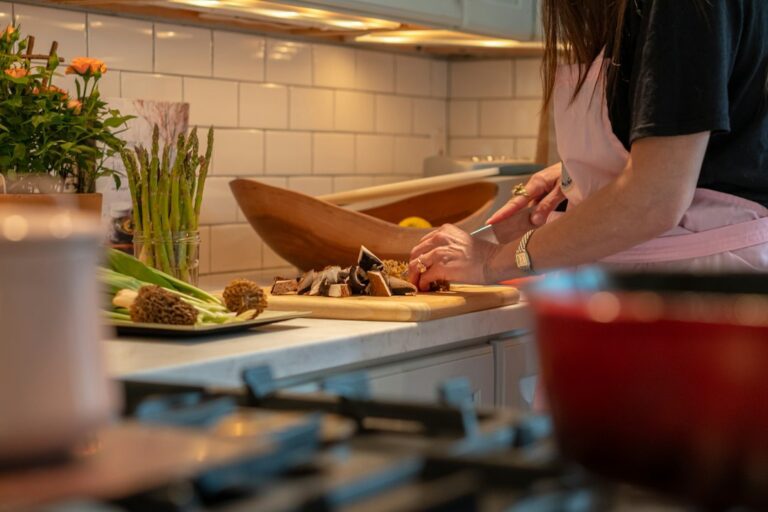
A useful first video answers a question you can actually demonstrate. Start with a person you understand and a problem small enough to solve in one sitting. Your channel can evolve later; this is a first experiment, not a lifelong niche decision.
Example: “I help students with one pan cook a filling dinner using five ingredients.” That gives you a viewer, a constraint and a visible result.
Still deciding what to film? Compare YouTube channel ideas for beginners, then bring one realistic idea back to this worksheet.
Read: YouTube: deciding what content to create ↗
Do these three things
- List three questions people ask you about a topic you know.
- Choose the idea you can demonstrate with what you already have.
- Write who the video is for, what they will learn and what you will show.
Your worksheet: a one-sentence video brief
Short notes are enough. Keep private or sensitive details out of your worksheets and AI tools.
Want a hand? Use this AI prompt
Help me choose a feasible first YouTube video. My audience is [viewer], the useful result is [promise], and my constraints are [constraints]. Ask up to three essential questions, then suggest three specific ideas. For each, list what I would need to demonstrate and why someone might watch. Do not invent audience demand or promise views. Help me select one idea I can finish.
Your worksheet answers fill matching brackets. Add any details still missing before using it in your preferred AI tool.No audience data yet? Begin with a real question you have heard. Keep a note of the assumption you are testing.
Next: Write your script →02Give the video a simple story.Make: An opening, three beats and an ending
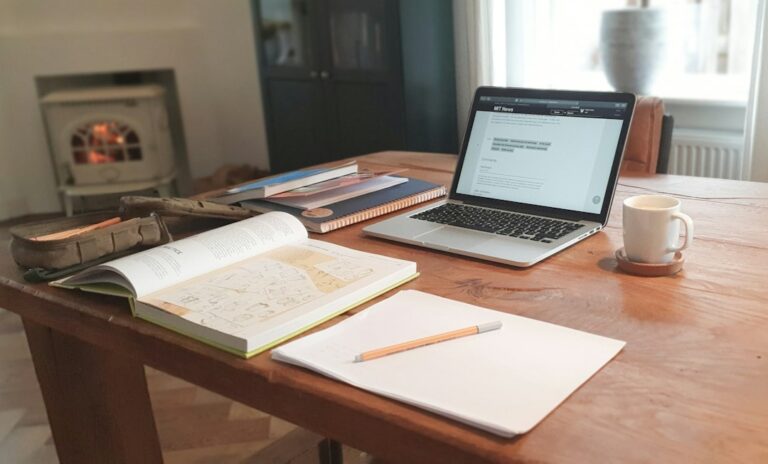
Write the result first, then work backwards. Show or explain what the viewer will get, cover three useful points and end with a clear takeaway. Read the words aloud: if a sentence feels awkward to say, simplify it. A bullet outline is enough if it helps you speak naturally.
Cooking example: show the finished dinner → lay out ingredients → demonstrate the three cooking steps → show the texture and explain one substitution.
For a complete outline and a worked example, use the YouTube script template. If the draft sounds unlike you, try the creative voice guide before recording.
Making a how-to video? Use the tutorial planning prompts to check the demonstration sequence, then continue with filming below.
Read: YouTube: preparing for a shoot ↗
Do these three things
- Write an opening that accurately previews the result.
- Outline three beats, pairing each with something viewers will see.
- Read it aloud and remove repetition or unsupported claims.
Your worksheet: an opening, three beats and an ending
Short notes are enough. Keep private or sensitive details out of your worksheets and AI tools.
Want a hand? Use this AI prompt
Turn this brief into a natural spoken outline: [paste your video brief]. Use this opening [opening], these beats [beats], and this takeaway [ending]. Pair each beat with a shot I can film. Keep my wording and experience, flag facts I must verify, and avoid invented stories, exaggerated claims or filler. End with a short rehearsal checklist.
Your worksheet answers fill matching brackets. Add any details still missing before using it in your preferred AI tool.Use AI as an editor. Your own observations, demonstration and checked facts are the substance of the video.
Next: Film with what you have →03Record a clear first version.Make: Usable footage and a backup

Turn your outline into a short shot list before recording. Make a small test clip and listen to it before filming everything. Aim for a stable picture and speech you can hear. Record one section at a time so a mistake only means redoing a short take.
For the dinner video, record the ingredients from above, each key cooking step, a close-up of the finished meal and a short spoken explanation. Keep the phone safely away from heat and spills.
3 Tips for Filming with a Phone ↗Selected lesson · YouTube Creators
Read: YouTube: filming with a phone ↗
THE EQUIPMENT CORNERA small setup. A real first video.
Make a test before you make a shopping list. These photographs show examples, not required products.
Your phone
Start with the camera you already own.
Clean the lens, check storage and record a short test clip. Watch and listen before you film everything.

A steady shot
Support matters more than an expensive camera.
Use a stable surface or a tripod you already have. Secure the device, check the frame and keep it away from spills or heat.

Clear speech
Fix the recording space before buying a microphone.
Choose a quiet spot and record close enough to hear speech clearly. Listen to a test with headphones. Extra equipment is optional.
Do these three things
- Choose your framing, tidy the background and record a sound test.
- Film each story beat and the close-ups needed to explain it.
- Review the clips and keep a backup before deleting anything.
Your worksheet: usable footage and a backup
Short notes are enough. Keep private or sensitive details out of your worksheets and AI tools.
Want a hand? Use this AI prompt
Make a practical shot list for this outline: [beats]. My setup is [setup] and I have [constraints]. For each shot, give framing, action, spoken line and a simple sound or light check. Identify anything missing from [shots]. Prioritise a safe, achievable shoot using equipment I already have.
Your worksheet answers fill matching brackets. Add any details still missing before using it in your preferred AI tool.You can make a hands-only demonstration, screen recording or voiceover. Being on camera is optional.
Next: Edit for clarity →04Make the useful parts easy to follow.Make: A finished video file you have watched

Put the clips in story order, remove mistakes and keep every cut understandable. You do not need a complicated editing style. Start with an editor you can use comfortably and check its export limits before investing time. Listen through headphones, then check the exported file on a phone.
If stirring takes several minutes, show enough to explain the technique and cut to the next meaningful change. Keep the instruction about when to stop cooking.
Total Beginner’s Guide to Video Editing ↗Selected lesson · YouTube Creators featuring TheNotoriousKIA
Read: YouTube: video editing tips ↗
Do these three things
- Arrange the clips, remove dead time and keep essential explanations.
- Check speech, captions, spelling and permission for any music or images.
- Export and watch the whole file, including its first and last seconds.
Your worksheet: a finished video file you have watched
Short notes are enough. Keep private or sensitive details out of your worksheets and AI tools.
Want a hand? Use this AI prompt
Act as a clarity editor for this video outline or transcript: [paste text]. The viewer is [viewer] and the promised result is [promise]. Suggest cuts, missing explanations and places where a visual would help. Separate necessary fixes from optional polish. You cannot see or hear my footage, so do not claim to have checked its picture, sound or pacing.
Your worksheet answers fill matching brackets. Add any details still missing before using it in your preferred AI tool.Save the project and original clips as well as the export. Those make later corrections much easier.
Next: Title & thumbnail →05Help the right viewer recognise it.Make: One honest title and one readable thumbnail

Describe the specific payoff of the video in language your viewer would use. Sketch a thumbnail with one obvious focal point, then look at it at phone size. The title and image should work together and accurately represent the finished video.
“One-pan student dinner with 5 ingredients” is more specific than “My first cooking video”. Only use a cost or time claim if you have checked it in your own demonstration.
Try the honest title and thumbnail prompts to compare options against what your finished video actually shows.
Titles and thumbnails: YouTube Creators tutorial ↗Selected lesson · YouTube Creators
Read: YouTube: thumbnail and title tips ↗
Do these three things
- Write three title options that match the finished video.
- Create one thumbnail with a clear subject and readable contrast.
- Ask someone what they expect to see, then compare that with your video.
Your worksheet: one honest title and one readable thumbnail
Short notes are enough. Keep private or sensitive details out of your worksheets and AI tools.
Want a hand? Use this AI prompt
Suggest five accurate titles for this finished video: [brief or transcript]. It is for [viewer] and delivers [promise]. Here are my drafts: [titles]. Pair each with a simple thumbnail concept I can make from my own images. Avoid fake urgency, guaranteed results and claims not demonstrated in the video. Explain which option is clearest, without predicting clicks.
Your worksheet answers fill matching brackets. Add any details still missing before using it in your preferred AI tool.Check YouTube’s current thumbnail requirements and account eligibility in the linked guidance; interface details can change.
Next: Publish your video →06Check it. Then share it.Make: A reviewed upload and your video link
Create a channel if you do not have one. Upload your export privately first so you can check the processed version before sharing. Add the title, thumbnail and a description that explains the video. Review the platform settings and checks, then choose the visibility you actually want.
Your description can begin with the recipe or main takeaway, followed by relevant links and credits. Avoid stuffing it with unrelated search terms.
How To Upload Videos with YouTube Studio (Desktop) ↗Selected lesson · YouTube Creators
Read: YouTube: uploading and publishing ↗
Uploading from your phone?
In the YouTube app, tap Create (+), choose Video, select your finished file and tap Next. Review your video details, audience and visibility before sharing. A square or vertical video of three minutes or less is uploaded as a Short.
Android upload instructions ↗ · iPhone & iPad upload instructions ↗
The lesson above shows desktop YouTube Studio. App screens and account features can differ; use the instructions for your device.
Do these three things
- Upload privately and check playback, captions, title and thumbnail.
- Review audience, disclosures, permissions and YouTube’s upload checks.
- Choose public or scheduled publishing when ready, then save the final link.
Your worksheet: a reviewed upload and your video link
Short notes are enough. Keep private or sensitive details out of your worksheets and AI tools.
Want a hand? Use this AI prompt
Help me review the upload information for my first video. Title: [chosen]. Summary: [promise]. Description: [description]. Give me a concise checklist of clarity issues and missing credits to investigate. Do not claim that content is copyright-cleared or that you checked the actual upload. Point me to YouTube’s current guidance for settings I am unsure about.
Your worksheet answers fill matching brackets. Add any details still missing before using it in your preferred AI tool.Upload is different from publish. Keep the video private while checking it. Account age and supervision can affect which features are available.
Next: Review & keep going →07Learn one thing. Plan the next three.Make: One improvement and a three-video plan
Review both the making process and the audience response. Early numbers can be sparse, so avoid treating a single upload as a verdict. Note one thing that was difficult, one useful piece of feedback and one change you will try. Build the next three ideas around the same viewer.
After the dinner tutorial: a cheaper ingredient swap, a common cooking mistake and a second one-pan recipe. These are connected ideas for the same audience, not three unrelated trends.
When you have real comments to review, use the audience feedback prompt to find a useful question for your next video.
Analytics in YouTube Studio ↗Selected lesson · YouTube Creators
Read: YouTube: getting started with Analytics ↗
Do these three things
- Write what you learned from making and sharing the video.
- Review available analytics and feedback without guessing missing data.
- Choose three follow-up ideas and realistic dates for the next work sessions.
Your worksheet: one improvement and a three-video plan
Short notes are enough. Keep private or sensitive details out of your worksheets and AI tools.
Want a hand? Use this AI prompt
Help me plan the next three videos for [viewer]. My first video was about [promise]. Here is what I observed: [learning]. Available data and period: [metrics]. Suggest connected follow-ups within [constraints]. Separate evidence from hypotheses, do not infer a trend from tiny samples, and give one manageable improvement to test in each video.
Your worksheet answers fill matching brackets. Add any details still missing before using it in your preferred AI tool.Finish means you made, checked and shared something, then chose your next action. Views, subscribers and income are not guaranteed.
You have a repeatable process. Use your next-three planner to choose the next work session.
A few things worth knowing.
Do I need to buy equipment or an AI subscription?
This roadmap can be followed with a phone, an editor you already have access to and your own notes. AI prompts are optional. Check tool availability, export limits and costs before choosing anything new.
Will this grow my channel or earn money?
The goal here is to finish your first video and build a repeatable process. Audience growth and income depend on many factors and are not guaranteed. Use what you learn to improve the next video.
Can I use this on another device?
You can read the roadmap anywhere. Saved notes and progress stay in this browser; they do not sync. Download your filled worksheets before switching devices or clearing browser data.
Who made the lessons?
The roadmap, exercises, prompts and workbook are by LifestyleGlide. Linked videos and platform guidance belong to their credited creators. This is an independent guide, with no YouTube affiliation or endorsement. Some lesson interfaces may differ from the current platform; use the linked official instructions for current settings.
Resources checked 3 October 2026. Pick one step, make its output, and come back when you are ready for the next.
YOUR SITUATION. YOUR DETAILS.
Filming and editing prompts.
Choose a task from this guide, add your details and check the answer before using it.
Browse the prompts below.
Filming and editing ↗
Plan a phone-only shot list
Film a useful sequence with the kit you have.
Open the prompt +
INPUTS [Video outline]; [phone setup]; [location]; [time] PROMPT Make a shot list for [video outline] using [phone setup], [location] and [time]. Give each shot a subject, framing, action and reason it is needed. Group shots by setup to reduce unnecessary moves. Keep equipment suggestions within what I already have.
Try this follow-up
Identify the minimum shots that still make the video understandable.
Check before using
Check your actual space, permissions and available light before filming.
Filming and editing ↗
Find the visual for an abstract idea
Explain the idea without misleading imagery.
Open the prompt +
INPUTS [Concept]; [audience]; [objects or footage available] PROMPT Suggest six visuals for explaining [concept] to [audience] using [objects or footage available]. Say what each visual represents and where the analogy breaks down. Prefer simple demonstrations or labelled diagrams. Do not imply that a symbolic image is direct evidence of a factual claim.
Try this follow-up
Choose the simplest visual and write a sentence explaining its limitation.
Check before using
Verify that the analogy does not change the concept’s meaning.
Filming and editing ↗
Prepare a two-location filming session
Make the schedule follow the setups.
Open the prompt +
INPUTS [Scene list]; [two locations]; [access windows] PROMPT Arrange [scene list] into a filming session using [two locations] and [access windows]. Group scenes by location and list props or materials needed before each setup. Mark uncertain access as a dependency. Include a fallback for a scene I cannot film.
Try this follow-up
Reduce the plan to essential scenes if one access window is lost.
Check before using
Confirm location access and consent independently.
Filming and editing ↗
Create continuity notes before editing
Keep details consistent across shots.
Open the prompt +
INPUTS [Scene description]; [shot list]; [important visual details] PROMPT Build continuity notes for [scene description] from [shot list] and [important visual details]. Track object position, clothing, screen state and action order where relevant. Distinguish intentional changes from accidental inconsistencies. Do not invent details not supplied.
Try this follow-up
Make a compact checklist I can keep beside the camera.
Check before using
Inspect the footage; a text checklist cannot confirm what was filmed.
Filming and editing ↗
Explain a confusing edit point
Make the next shot earn its place.
Open the prompt +
INPUTS [Sequence transcript]; [shot descriptions]; [viewer confusion] PROMPT Review [sequence transcript] and [shot descriptions] for [viewer confusion]. Identify where information arrives too early, too late or without context. Suggest a cut, a bridging shot or a short clarification for each issue. Do not assume access to footage not listed.
Try this follow-up
Choose the smallest change that resolves the most important confusion.
Check before using
Watch the revised sequence without relying on your knowledge of the topic.
Filming and editing ↗
Draft captions that preserve the spoken meaning
Make the text usable and faithful.
Open the prompt +
INPUTS [Approved transcript]; [caption length limits]; [terms] PROMPT Prepare caption text from [approved transcript] within [caption length limits]. Preserve [terms], meaningful uncertainty and the speaker’s intent. Break lines at sensible phrase boundaries. Mark unclear words for manual review rather than guessing them.
Try this follow-up
Check the captions against the transcript and list any wording changes.
Check before using
Check timing and readability against the actual video and player.
Filming and editing ↗
Make a B-roll gap list
Know what footage you still need.
Open the prompt +
INPUTS [Script]; [existing shot inventory]; [filming limits] PROMPT Compare [script] with [existing shot inventory]. List moments where a supporting visual would make the explanation clearer, existing footage that could work and gaps that need a new shot. Use [filming limits] to suggest realistic substitutes. Avoid decorative footage that creates a false impression.
Try this follow-up
Prioritise the three gaps with the biggest effect on clarity.
Check before using
Label recreated scenes or illustrative visuals when context requires it.
Filming and editing ↗
Plan an edit around a fixed runtime
Trade detail consciously rather than cutting at random.
Open the prompt +
INPUTS [Rough sections]; [must-keep points]; [runtime] PROMPT Allocate a tentative runtime across [rough sections] while preserving [must-keep points]. Explain which repetition to cut first and which context should remain. Give a shorter fallback outline for [runtime]. Do not claim exact timing without the actual spoken delivery.
Try this follow-up
Revise the allocation using these measured section lengths [lengths].
Check before using
Time the actual footage and narration, then check that cuts preserve meaning.
Filming and editing ↗
Write an edit handover for a collaborator
Make the decisions and open questions visible.
Open the prompt +
INPUTS [Footage inventory]; [agreed style]; [delivery requirements] PROMPT Write an edit handover using [footage inventory], [agreed style] and [delivery requirements]. Separate fixed decisions, optional suggestions and questions awaiting approval. Include asset references and a review checklist. Do not invent rights, deadlines or approvals.
Try this follow-up
Turn unanswered points into a short confirmation request.
Check before using
Confirm asset permissions and agreed delivery details with the collaborator.
Filming and editing ↗
Check a demonstration’s filming coverage
Capture the action a beginner needs to see.
Open the prompt +
INPUTS [Task steps]; [planned angles]; [common mistake] PROMPT Review [planned angles] against [task steps] and [common mistake]. Identify actions hidden by hands, small screen details and outcomes that need a close-up. Propose a minimum coverage plan that shows cause and result. Keep the advice tied to the supplied task.
Try this follow-up
Add one shot that helps the viewer recognise and correct the common mistake.
Check before using
Test the demonstration’s instructions and visuals before publishing.
These are original, editable starting points. A prompt does not complete an action outside the conversation. Use approved inputs and review facts, source material and commitments before using a result.
GO DEEPER / 2 FREE TEMPLATES
Prompts for this part of the task.
Use a template for the step you are working on. Add the required inputs, then check the result against your source material.
Browse the task-guide directory ↗
Use a small workflow that you can repeat.
- Choose one viewer and one useful takeaway before asking for ideas.
- Supply a real outline, transcript or audience question. Mark any facts that still need checking.
- Compare alternatives against the promise of the content, not just how exciting the wording sounds.
- Make a small version, review what people actually respond to and change one thing next time.
Keep in mind: Do not invent testimonials, platform analytics or expertise. Treat AI’s predictions about clicks and views as guesses. Keep the work recognisably yours.
A content plan you can actually make
Fit ideas to your available time.You get: Practical production plan+
COPY. PERSONALISE. CHECK.
Build a two-week content plan about [topic] for [audience]. I have [hours] each week, these materials [assets] and these production limits [limits]. Suggest four pieces using two repeatable formats. For each, give a viewer need, a specific takeaway, required preparation and a small first version. Separate creation time from publishing tasks. Do not assume daily posting or guaranteed growth. Ask if an essential constraint is missing.
Example input
A new cooking creator has three hours a week and can film only on Sunday.
Illustrative scenario, not a generated or verified AI result.
Then ask
Cut the plan by half while keeping the two pieces most useful to the audience.
Before using the answer
Check that the filming, editing and preparation fit the real schedule.
Build a connected three-part series
Give each instalment its own useful outcome.You get: Three distinct pieces with connected takeaways+
COPY. PERSONALISE. CHECK.
Plan three related pieces about [topic] for [audience]. My available material is [experience, notes or footage], and my production limits are [limits]. Give each piece a distinct question, audience takeaway, outline and link to the next piece. Avoid repeating the same advice in every instalment. Mark missing evidence or footage and propose a smaller version using what I already have.
Example input
Three short videos on starting a balcony herb garden, using footage of choosing pots, planting and checking soil.
Illustrative scenario, not a generated or verified AI result.
Then ask
Identify the strongest standalone first piece and remove any dependency on watching the whole series.
Before using the answer
Make sure every promised takeaway is supported by material you can actually provide.
Keep learning from original sources.
These sources inform the workflow and checks; the templates above are original LifestyleGlide prompts.
More starting points for this task.
Choose one prompt and add your own details.
CreatorsBuild my YouTube roadmap
A realistic first month, shaped around your life.Open the prompt +
Help me plan my first month on YouTube. My age range is [age range], my topic or hobby is [topic], I have [hours per week] hours weekly and a budget of [budget]. My experience is [experience] and equipment is [equipment]. Ask up to three essential questions, then make a four-week table with one achievable video each week, skills to practise, time estimates and a weekly review. Protect study, work and rest time; include privacy and adult-support considerations if relevant. Do not promise views, income or monetisation.